

In our last post we introduced the new Deep Structure function in Rainbow, which you’ll find on the menu under Summary Report. This lets you see at a glance which are the largest worksheets (tabs) in your workbook, and what sort of content each worksheet holds. And we’ve now made it easier to scan through all the worksheets and do a quick visual comparison, by incorporating Excel’s own system for outlining (grouping) rows which are on the same level.
As you can see in the screenshot above, this now lets you hide the details of what’s in each worksheet and simply see a list of all the worksheets (along with their bar graphs as explained in our previous post). And you’ll notice that we’ve adjusted the level numbers in column A of the report to align with Excel’s outline numbers. So the workbook itself is now level 0 (rather than 1), and the worksheets are level 1 (rather than 2).
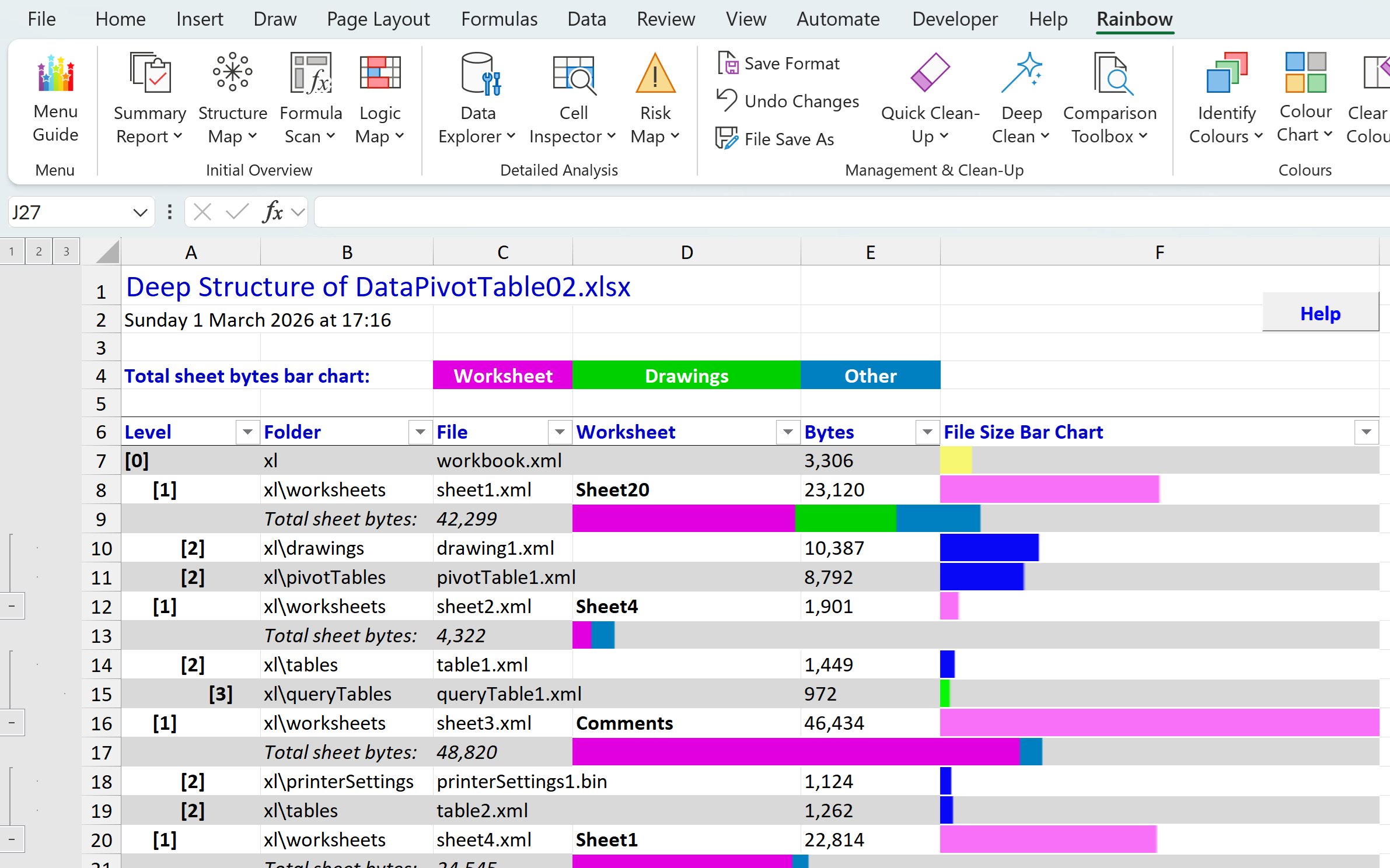 So when you first run the Deep Structure report it will display all the levels of detail, as you can see here (on the left). You can then simply click the “1” button to the left of the column headers (at the top) to hide the details and display only levels 0 and 1, as shown in the screenshot above. And to re-display the hidden details just click the higher-level buttons to the left of the column headers, or click the “+” buttons in the left margin, or press [Alt][Shift]= to display and [Alt][Shift]- to hide the details.
There’s one other minor change in the latest version (26.02.2) of Rainbow, which may help if you accidentally pressed [Esc] or clicked Cancel instead of OK on the pop-up box that appears immediately after installation and asks you to “Click OK to activate Rainbow Analyst”. This can leave a small installer add-in file sitting in your XLSTART folder, which loads a blank tab when you start Excel. You can easily delete this file yourself, but the latest Rainbow version checks each time you start Excel, and if it finds the installer add-in file it will offer to delete it for you.