

Did you know that there’s a completely different way of looking at an Excel spreadsheet? And that it can show you information that you didn’t know was there, helping you avoid disastrous errors like the leak of data about Afghan personnel in 2022 that was made public in 2025?
If you’ve been using Excel for a long time, you may remember that in 2007 Microsoft introduced a new file format for Excel, Word, and PowerPoint, with filenames ending in .xlsx, .docx, and .pptx. In this new Office Open XML format, your Excel spreadsheet (.xlsx) file is created by compressing (“zipping”) together a set of smaller XML (Extensible Markup Language) files. Each of these XML files (ending in .xml) contains a standardised definition of one component of the spreadsheet, such as a worksheet (tab), a table or a chart.
What this means is that in principle you can reverse this process; you can “unzip” a spreadsheet file and work out what’s in the spreadsheet by looking at all the XML files that define it. In practice it would be too difficult and time-consuming to do this manually, but the latest version 26.02 of Rainbow Analyst can do all the hard work for you, as you can see in the screenshot above. This shows a report from Rainbow’s new Deep Structure function, which lists row-by-row each of the XML files (i.e. each of the components) that make up a spreadsheet. By itself this might still not be very helpful, but the Deep Structure function does two more things.
First, it shows you the dependencies between different components, i.e. what components contain other components. So in the report above you can see that the highest-level “container” is the workbook itself, which contains all the other components. The workbook is on level 1 as shown in column A, and underneath it on level 2 (i.e. contained within the workbook) are several worksheets. Each worksheet may then contain other objects, and you can see that for instance the “Sheet 20” worksheet contains a drawing (a graphical object) and a pivot table, which are on level 3. And where a level 3 object contains another object, this will be on level 4, and so on. So this is starting to make sense of the structure of the XML files.
The second thing that the Deep Structure function does is to provide a bar chart showing the size of each of the XML files, in column F. The bar for the largest file will fill the whole width of column F (as you can see here on row 16, for file sheet3.xml), and the sizes of the remaining files will be shown in proportion to this. And as well as the bar chart in column F, you will see there is a stacked bar chart in columns C to F, in the row immediately underneath each worksheet file. This shows the total size of the worksheet file plus all the files under it (i.e. representing components contained in the worksheet). So the stacked bar in row 9 represents the size of the worksheet file for Sheet 20 (sheet1.xml, in magenta) plus the size of the drawing1.xml file (in green) and the pivotTable1.xml file (in cyan).
These technical details may seem a bit confusing, but actually the Deep Structure report is very easy to use. Simply look down column F in the report and find the two or three largest files. If these are worksheet files, ask yourself if the file sizes make sense in terms of what you know about these worksheets, e.g. the number of rows and columns as shown in the Summary Report. Or if one or more of the largest files is not a worksheet file, note whether it is contained within a worksheet, and if so whether you would expect this worksheet to contain a large amount of e.g. graphical objects (if the large file is a drawing file) or tabular data (if it is some kind of table file). And if you spot something that doesn’t seem to make sense, this is your clue to investigate further!
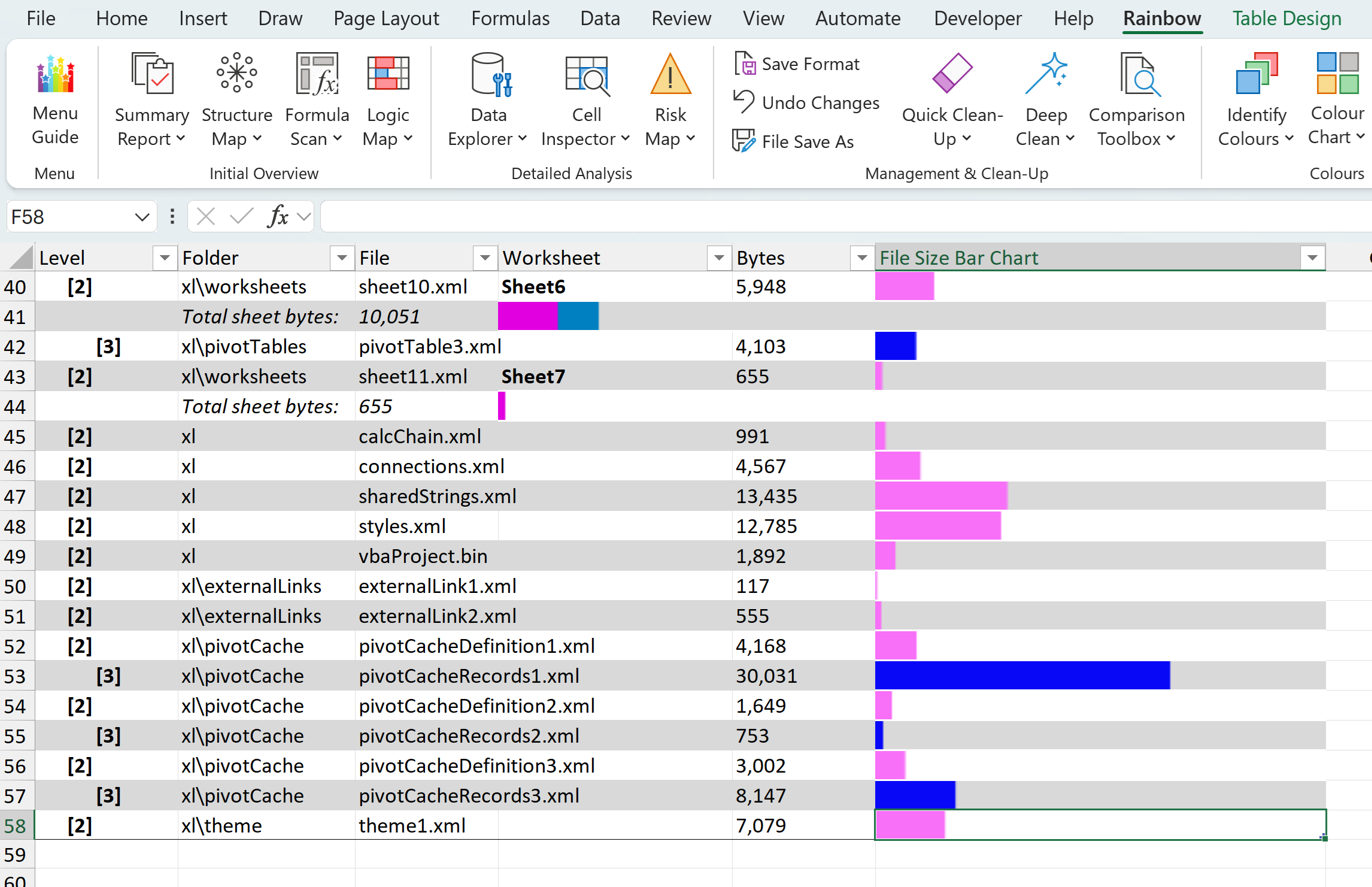 One other important feature of the Deep Structure report is that, as you can see here (on the left), at the bottom of the report after the worksheet-related files you will find other general level 2 files. These represent components which are contained in the workbook but which do not belong to any specific worksheet, and they can provide valuable further clues about what’s in your spreadsheet.
Here you can see that there is a small calcChain.xml file, indicating that there is only a small chain of calculations, i.e. there are not many formulas in this workbook. The sharedStrings.xml file is much larger, indicating that there is quite a lot of text (strings of characters, i.e. words). The connections.xml file shows that there are connections to external data sources, in addition to the two external links to other Excel files. The styles.xml file indicates that there are some custom styles; if this file was a lot larger it would indicate that the custom styles had become corrupted. There is a small vbaProject.bin (binary) file, showing that the workbook contains some VBA code. The large pivotCacheRecords1.xml file means that the workbook contains a significant amount of cached data, i.e. data that is not stored directly in a worksheet, but at least some of which will be displayed in pivot tables in one or more worksheets. And the theme1.xml file is simply the basic colour scheme for the workbook.
The Deep Structure function, like the Summary Report, will work even if a spreadsheet contains hidden or protected worksheets. So I hope you can see that it gives you a lot of really important information and is well worth using (in combination with the Summary Report) when you first start to analyse a spreadsheet. It can potentially save you from overlooking vital content that may be buried deep in the spreadsheet in front of you. Why not give it a try and see for yourself?